Shape a route
Bend points let you route a line around terrain and obstacles while drawing.
When this helps
Bends route a section around an obstacle without moving its two stops. A longer route changes travel time and construction cost; spreading the same height difference over more distance can reduce the grade. The speed calculation has no separate curve-radius penalty: it uses section length, vehicle and line type.
Step by step
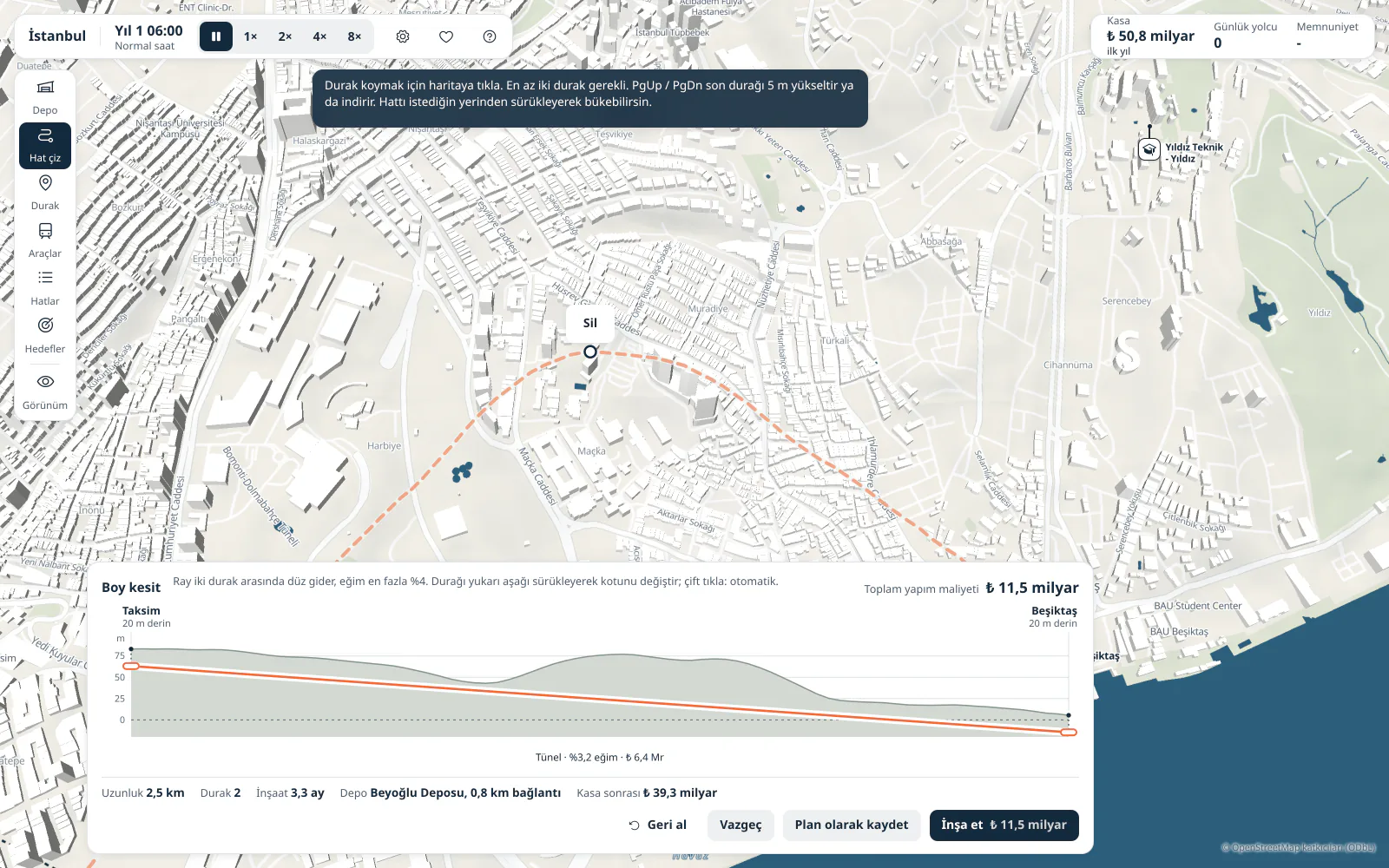
- Use Draw line to place two stops. Hover over the section between them and drag the line to create a bend point.
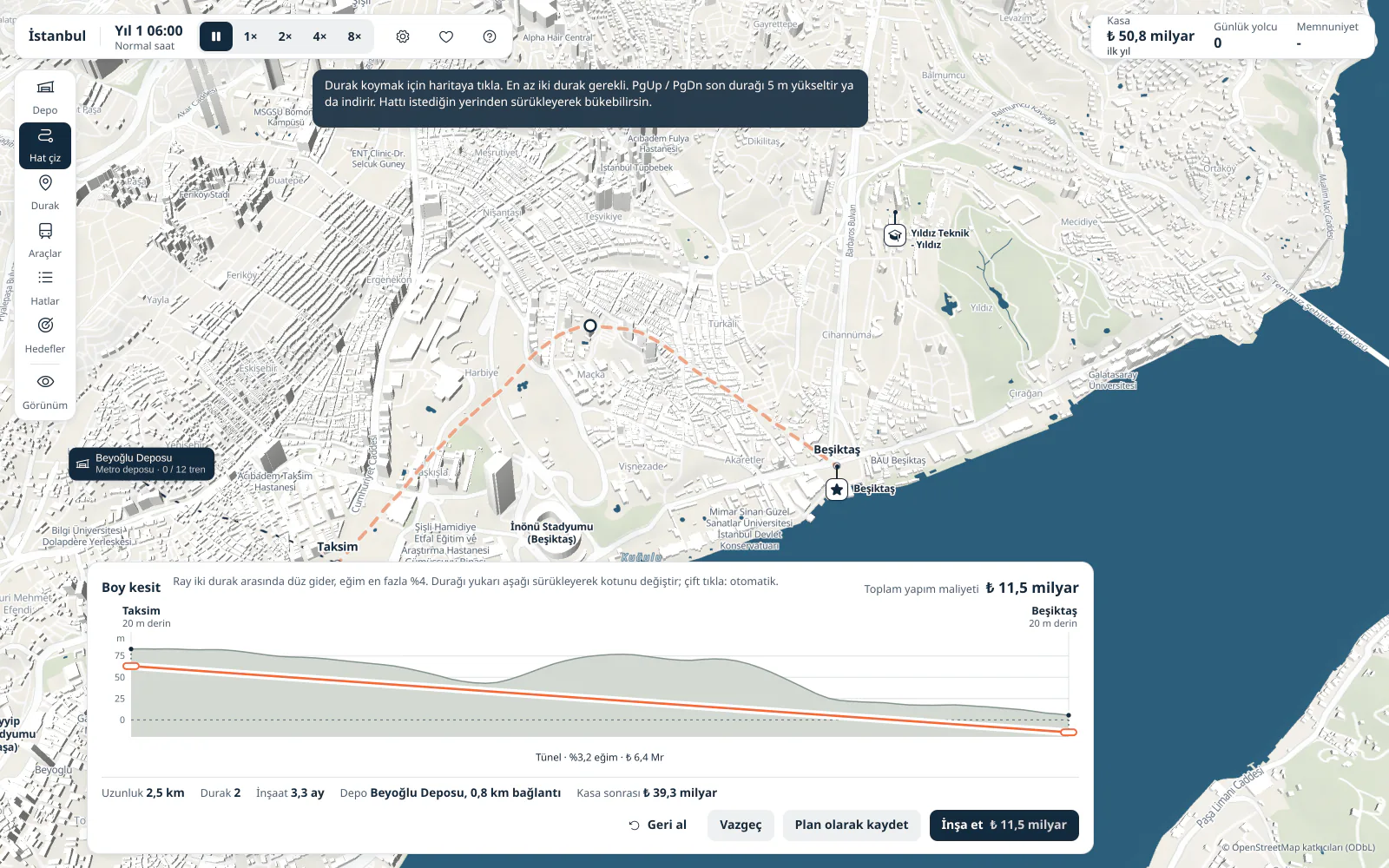
- Drag the point to move it; double-click it to delete it. On a touchscreen, press and drag the middle of the section. To delete a point, tap it and press Delete.
- For a tram or bus rapid transit line, try Follow road. When a road route is found, the draft follows it; turn it off to place a stop exactly where you click.
- Ctrl+Z or Undo takes back the last stop or bend change. A section can have at most 40 bend points.
Limits and numbers
A section can retain up to 40 points. Its bent length cannot exceed 3 times the straight distance between its stops. A bend cannot be placed on a locked bridge span. Check bridge approaches and protected areas before moving the route.
Common errors
If the game says the line cannot bend on a bridge, place the point outside the bridge. If the section is too winding, reduce the bends. A bend changes distance and can affect the grade; change the route or stops if it is too steep. There is no tool for editing the existing bends of an open line, so check the draft before building.
Tips
- Zoom in and grab the section away from stops and existing bend points.
- Recheck the cost and red sections after each drag.
- Use Save as plan to keep an experiment without spending money. Open the plan to edit and build it later.
- Existing bends on an open line cannot be edited with this tool; a plan preserves a draft before construction rather than modifying an open line.